Help
How-to guides
The most important steps as short animations. The screens are shown in German; the app looks the same in English.
Connect your PIXEM in the app
- 1Install the MLSP Sideline app on your iPhone and log in.
- 2Switch the PIXEM on in smartphone mode.
- 3In the app, open the Cam and tap “Robot”.
- 4Pick your PIXEM from the list. Next time it connects on its own.
- 5Start recording or a lesson: the PIXEM follows your watch, and the AI camera takes over if the watch fails.
Start or plan a lesson
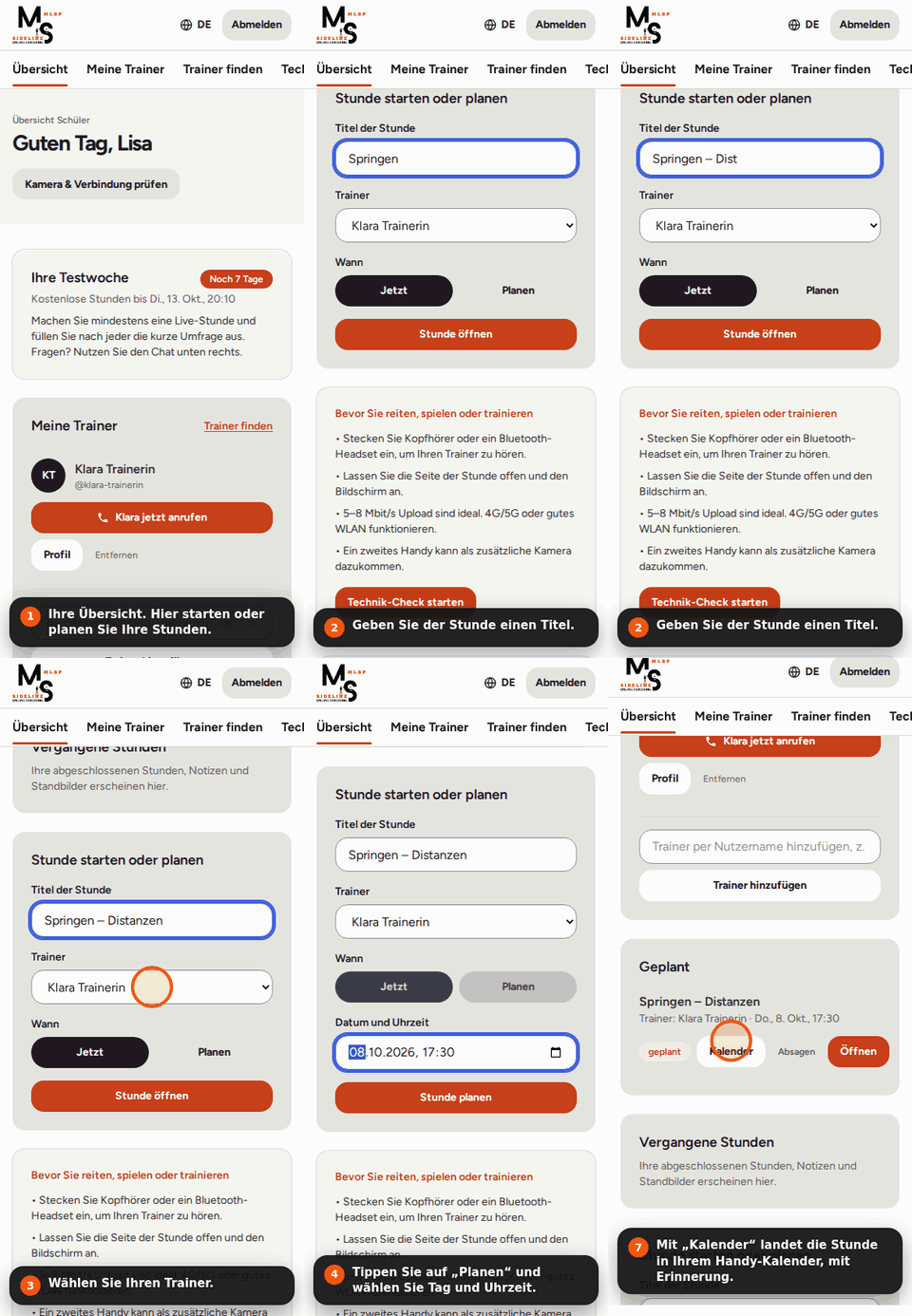
- 1On your dashboard, give the lesson a title.
- 2Pick your coach (or invite someone by email).
- 3“Now” opens the lesson right away; “Plan” lets you pick a day and time.
- 4Your coach gets an email with the link. Planned lessons are listed under “Planned”.
- 5“Calendar” adds the lesson to your phone's calendar with a reminder.
Your account at a glance
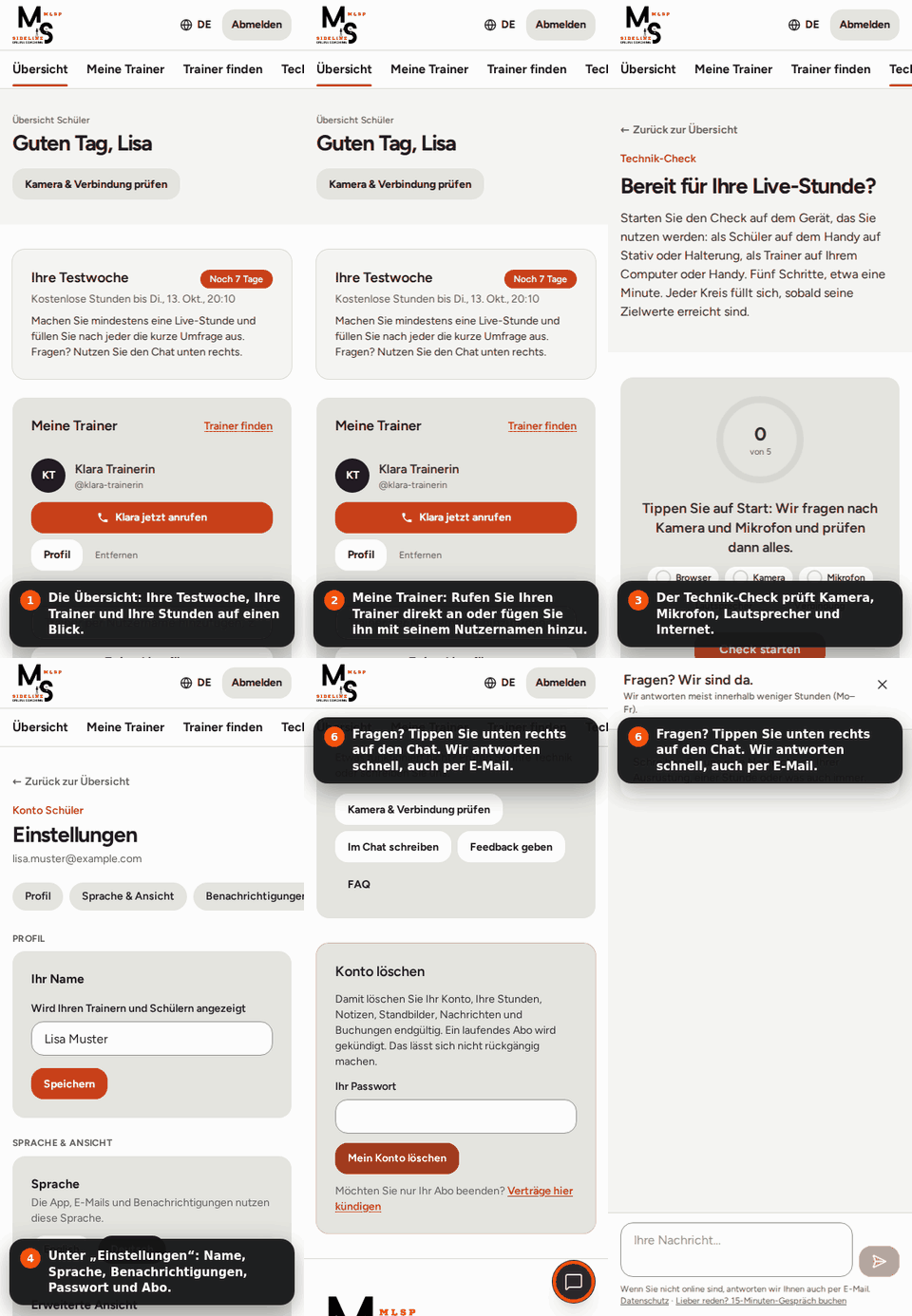
- 1Dashboard: your test week, your coaches and your lessons.
- 2My coaches: call your coach directly, or add one by their username.
- 3Before the first lesson: “Check camera & connection” (1 minute).
- 4Settings: name, language, notifications, password and subscription.
- 5Questions? The chat at the bottom right. We answer quickly, also by email.
Still stuck? Write to us in the chat at the bottom right, or book a 15-minute video call and we will set it up together.
Book an intro call